Friday, June 6, 2014

First look at the Miclick - delivered by 65daigou to Singapore


After several days of waiting, I was rather excited to have received my Miclick today from the 65daigou deliveryman, using the 65daigou service recommended by 杰x杰 in the Miui forum thread here. The Miclick was purchased from the official Mi.com website in China.

The service was punctual as I had received a reminder sms that the deliveryman will be arriving today at the scheduled timeslot. It took about one week from ordering it from the official mi.com website in China and finally receiving it in the evening.
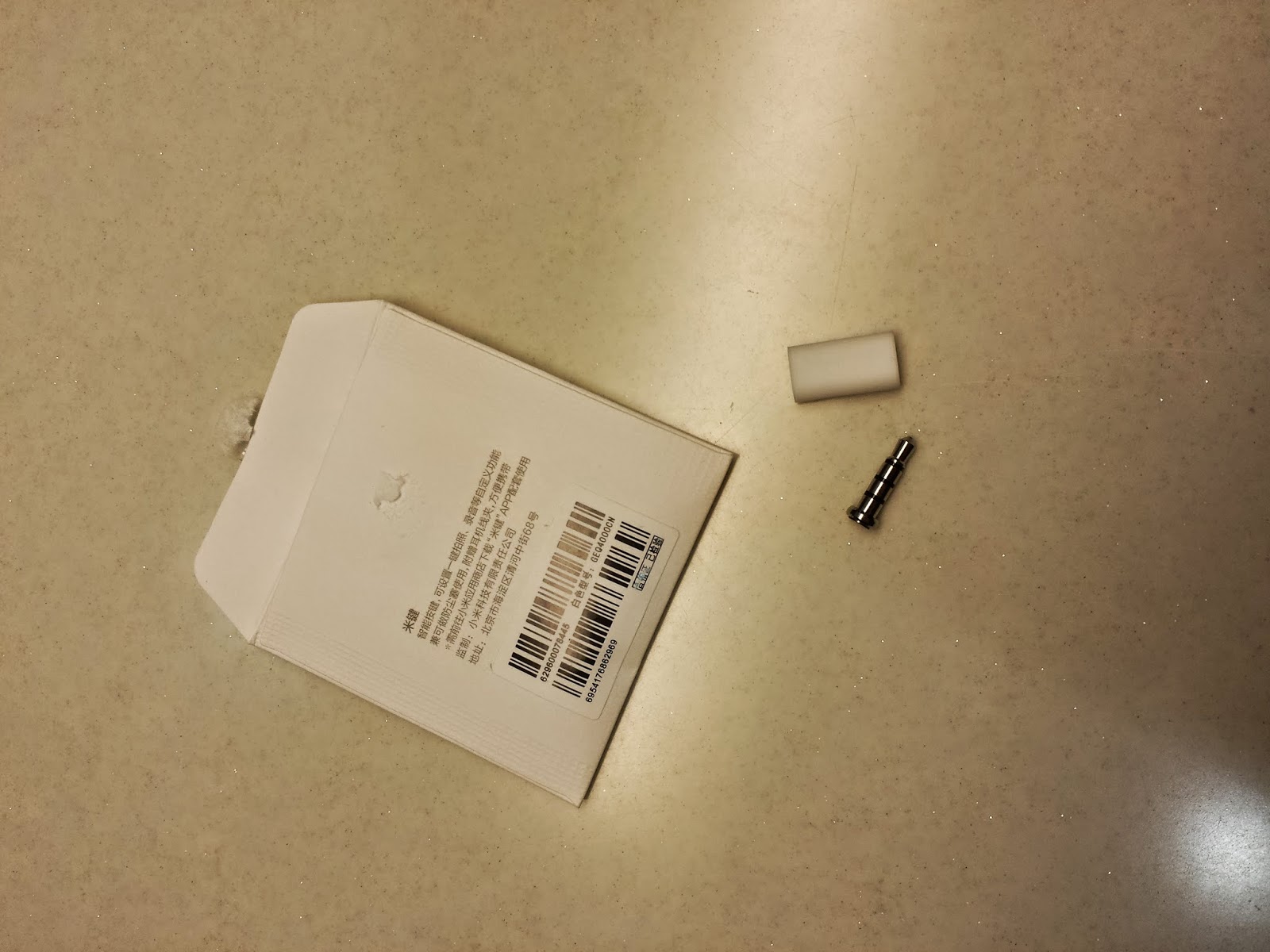

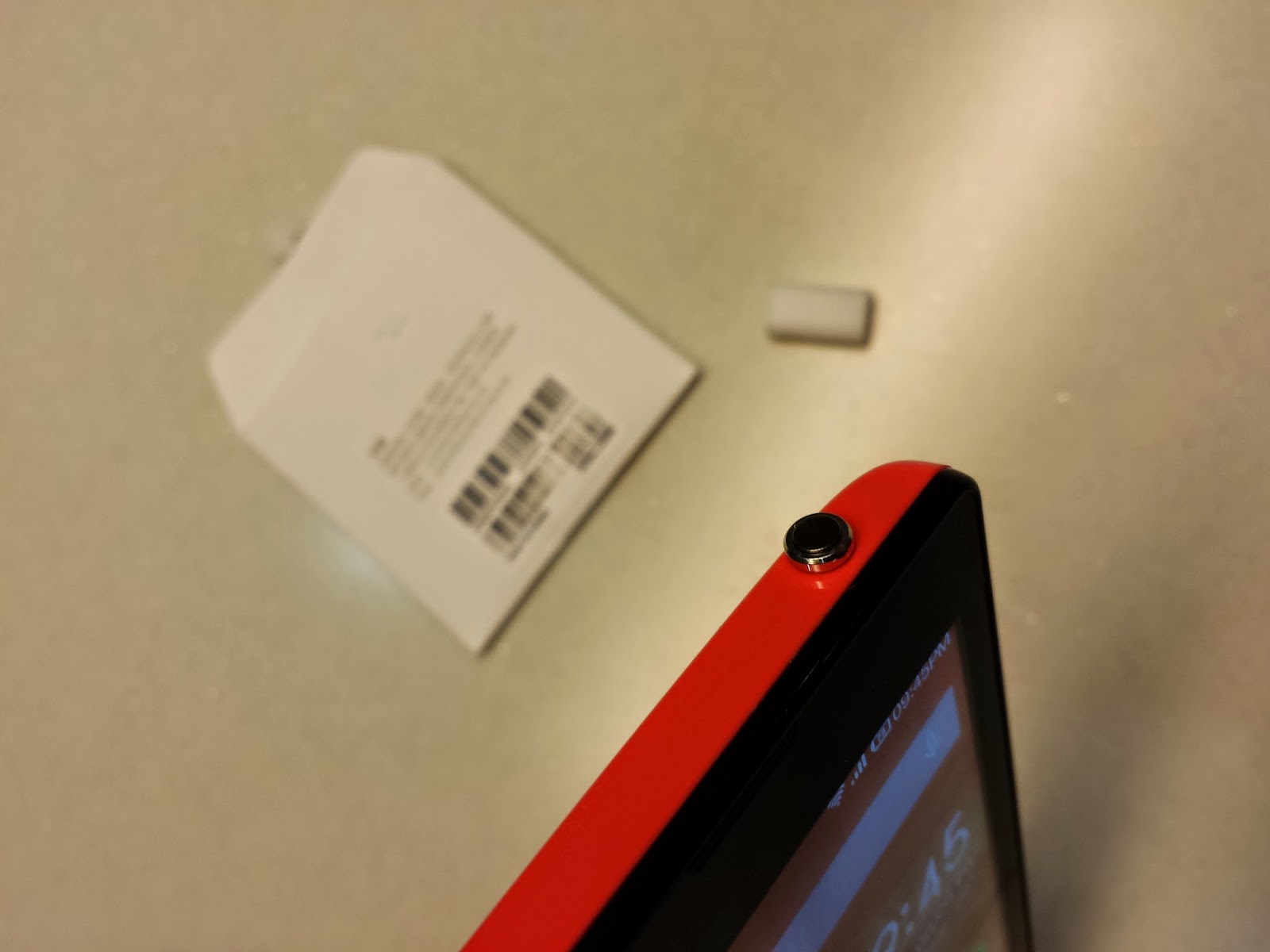
The Miclick is a customisable button that plugs into the 3.5mm audio jack of any handphone. It is a quite a snug fit, and you have to really give it a go and push it all the way in. The tight fit means that it will not accidentally slip out.
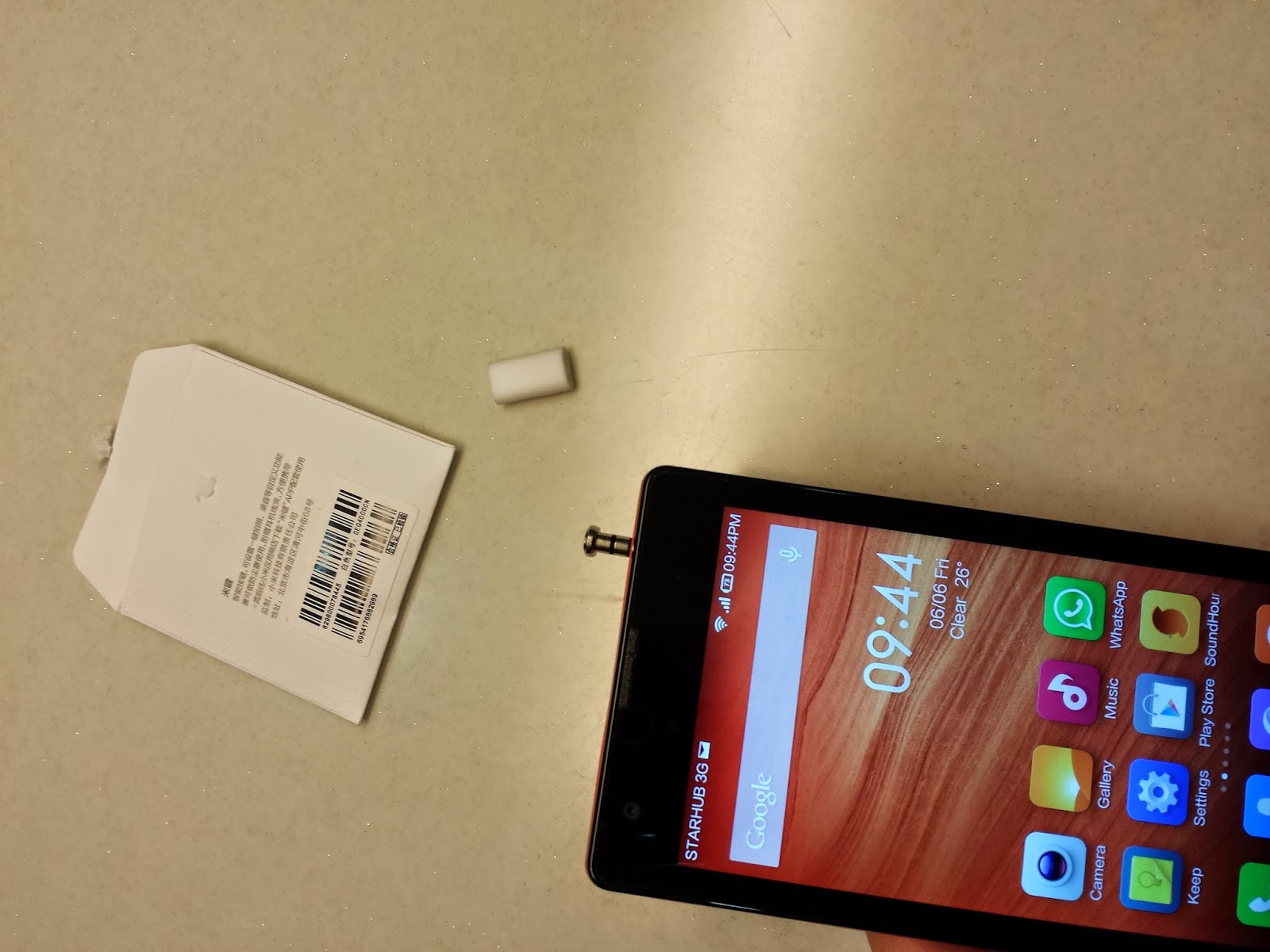

As you can see, the button is not completely flush and will be sticking out slightly from the headphone jack, but not in an uncomfortable or excessive manner.

The Miclick requires that the Miclick (米键) app be installed from the Xiaomi market. The Miclick is supposed to work with any android phone that can install the Miclick app.


Once the app is installed, the insertion of the Miclick will activate the UI which allows the customisation of the button. Miui forum moderator Clintonccy has a good tutorial over here on how to install the Miclick app.

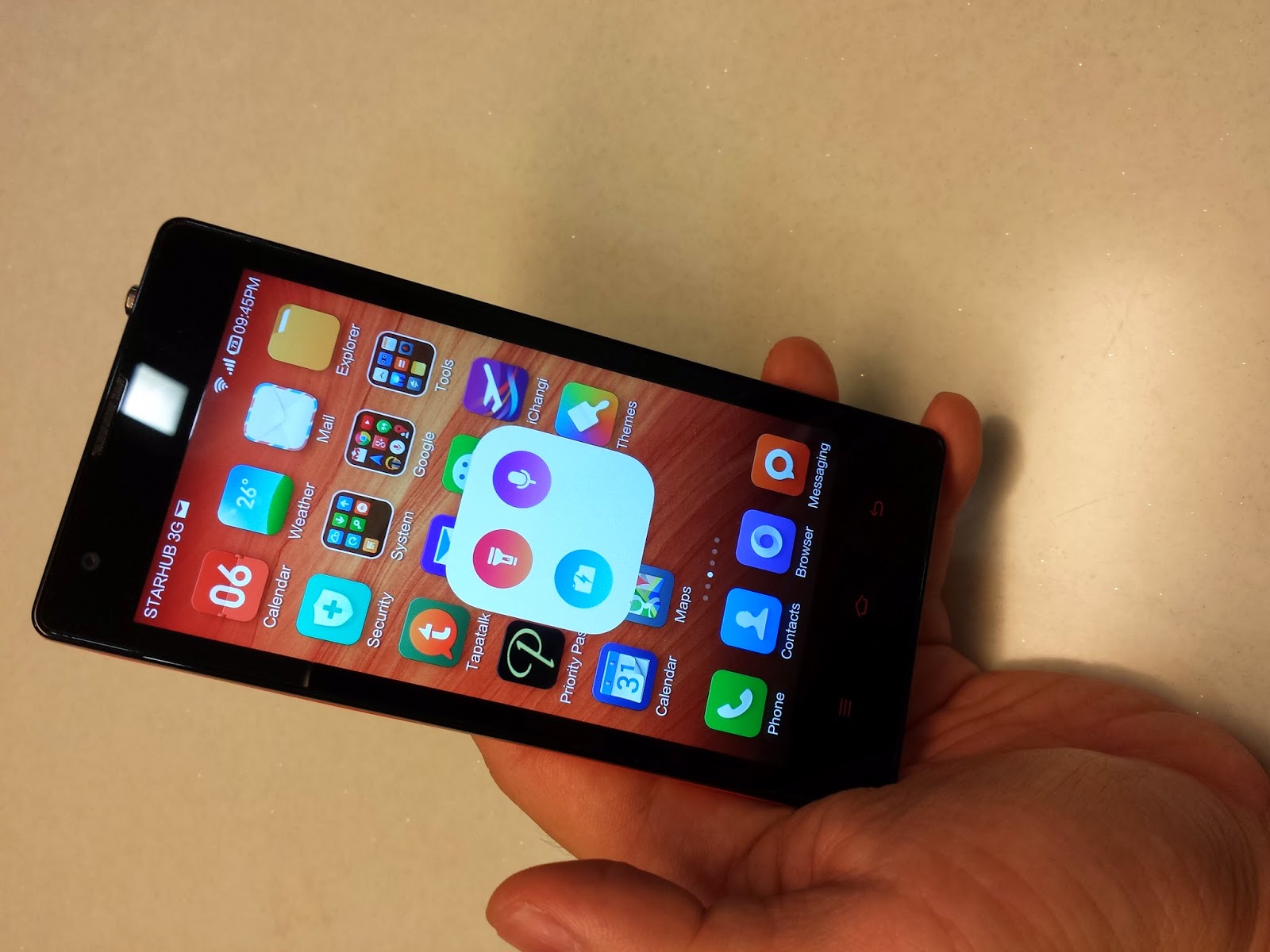
For my Miclick, I am using the default one click to activate the toolbox (工具箱) that allows me to choose the camera, torch or voice recorder.

The default setting for two-clicks (双击) is the torch. The Miclick app makes it easy to customise the button clicks.
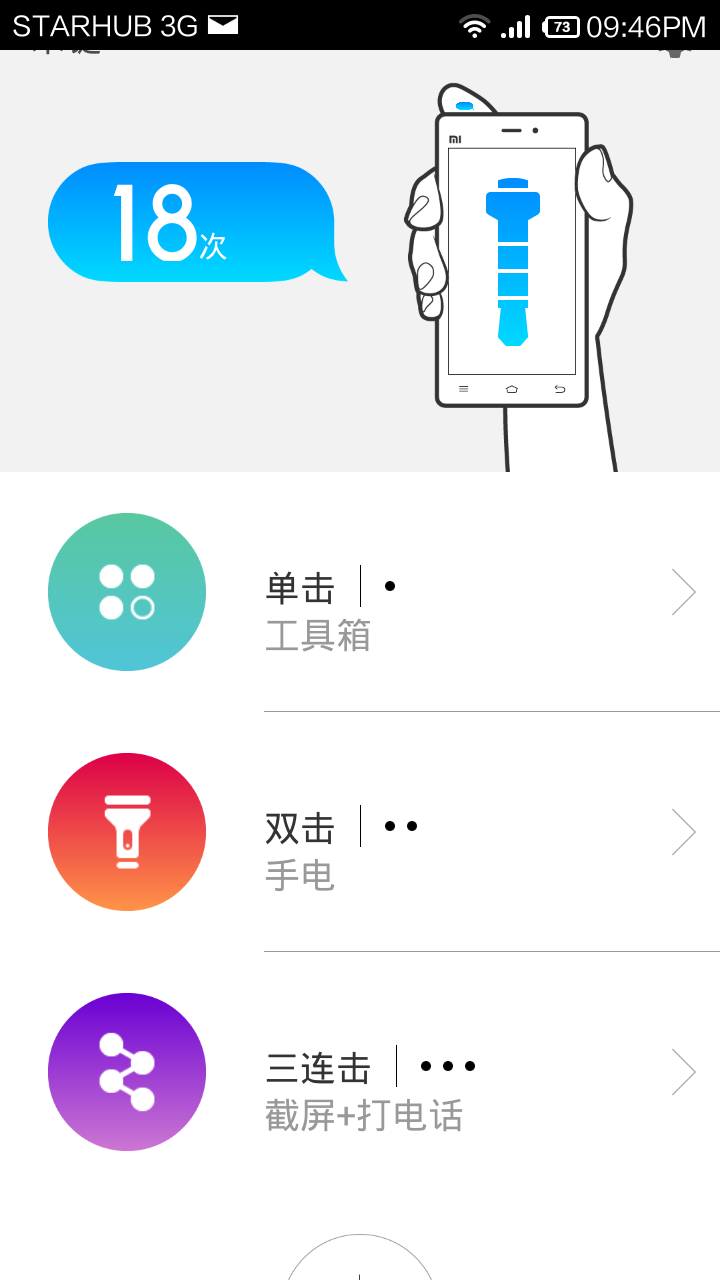

I have customised three-clicks to make an automatic phone call. This is useful in an emergency situation. 
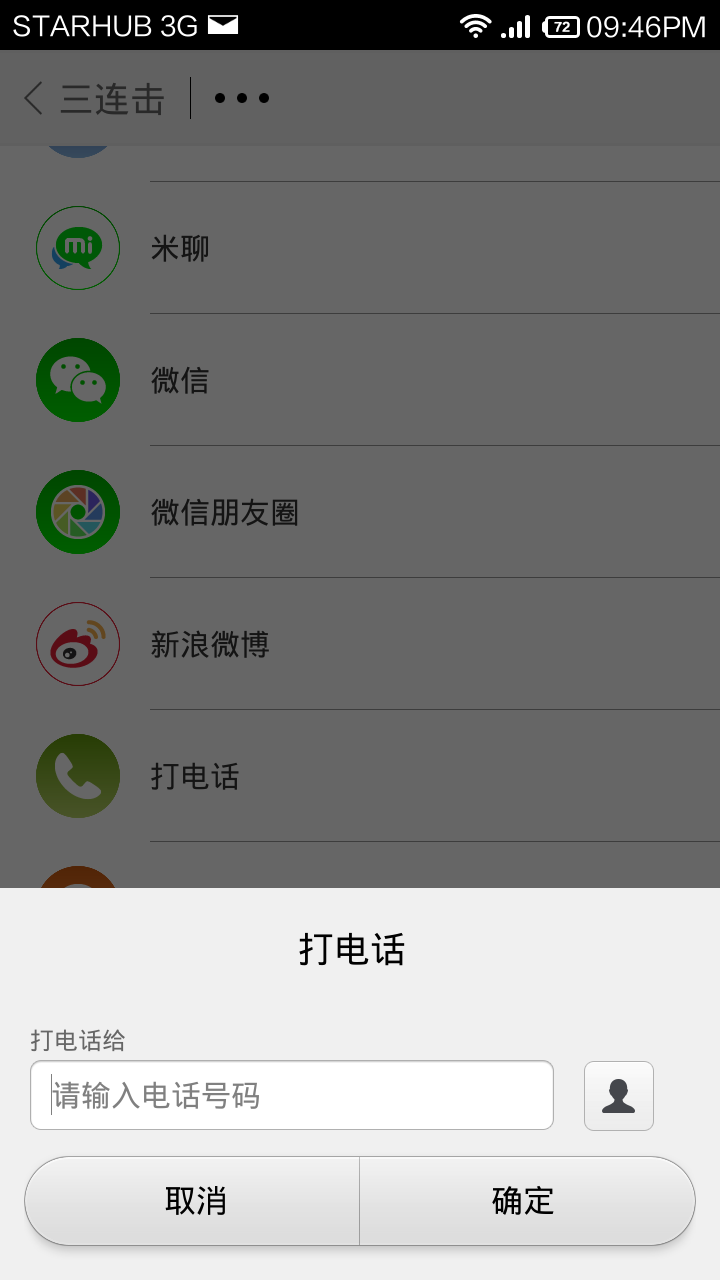

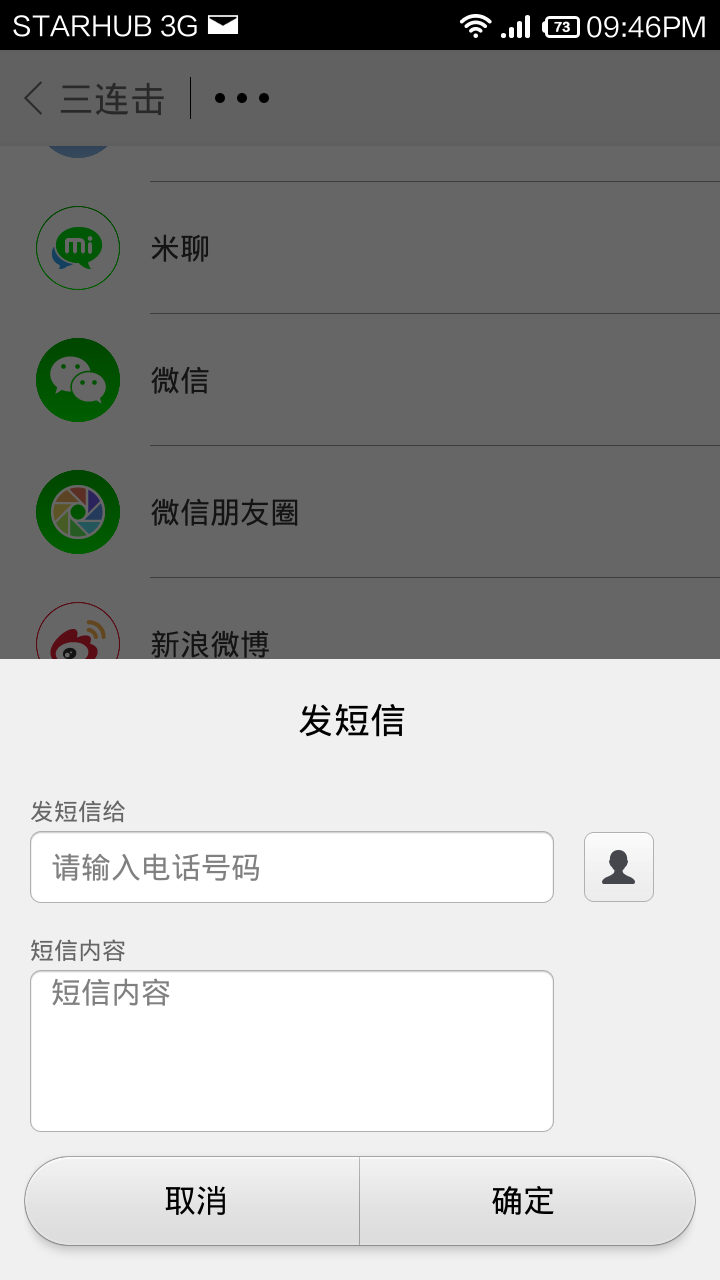
You can also customise the button to send an automated sms, just with one press of the Miclick button!

There is a lot of novelty and entertainment value in this little device, and all only for RMB 4.90 (about S$1)!

However, if you are using a service like 65daigou, the chargeable amount inclusive of land freight to its Guangzhou office did cost me more than that, and I had to pay S$3.67 as an initial payment for the domestic shipping.

Once it reached the Guangzhou centre, there will be an email prompt for international shipping. I chose the Economy Air option for the shipping to Singapore and opted for home delivery (an additional $5). Once the parcel reached Singapore, I had to make the second payment of $11.57. 

In summary, I had to make the following payments:
  • 65daigou purchase and PRC Mainland freight to Guangzhou $3.67
  • Economy Air freight and Home deliver $11.57

Grand total: $15.24

You can save $5 by opting for self-collection at one of the collection centres in Singapore.

Given that the 3.5mm audio jack is still likely to be with us in the near future, I think the Miclick is an entertaining accessory for any android user. 


Sunday, June 1, 2014

The flagship Mi3 from Xiaomi


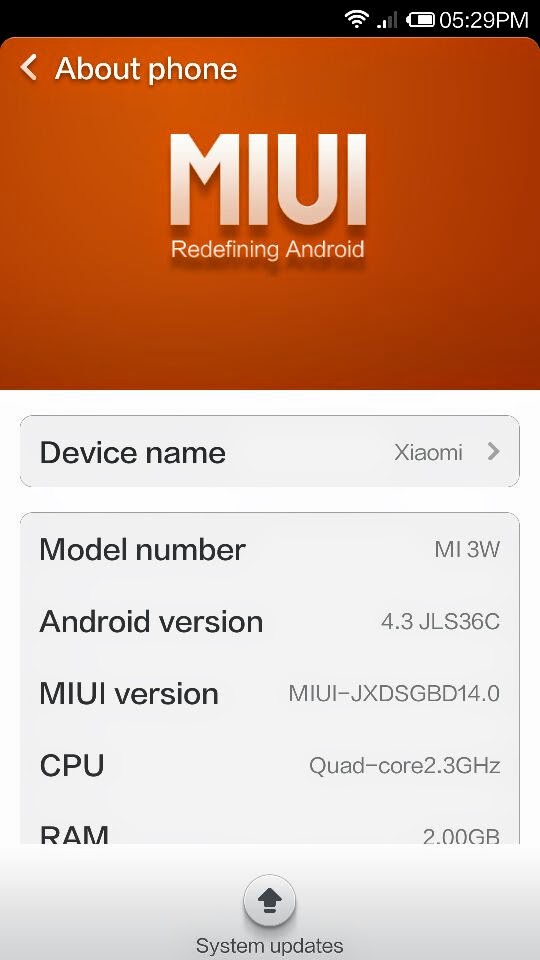
I bought a Mi3 recently to replace my dad's iPhone 4 which was getting long in the tooth and frankly, unacceptable to the eyes with what we now consider a tiny 4" screen! The infamous unresponsive iPhone 4 home button was also becoming an issue.


Despite all the good reviews that I have seen, I was still pretty stunned by the quality of the IPS screen on the Mi3.

There has already been several good reviews about this phone such as one by Hardwarezone here and others comparing the Mi3 with the Samsung S5 over here and I am generally in agreement with them. The lack of 4G LTE would be a step-backwards for some, and 16Gb internal memory without an sd card slot might not be acceptable for power users.

Hardwarezone did a decent review of the Mi3 using various benchmarking apps over here. However, most Singapore Samsung S4 users would only have the S4 LTE i9505 that runs the Snapdragon 600 quadcore 1.9Ghz instead of the i9506 that has the more powerful Snapdragon 800.


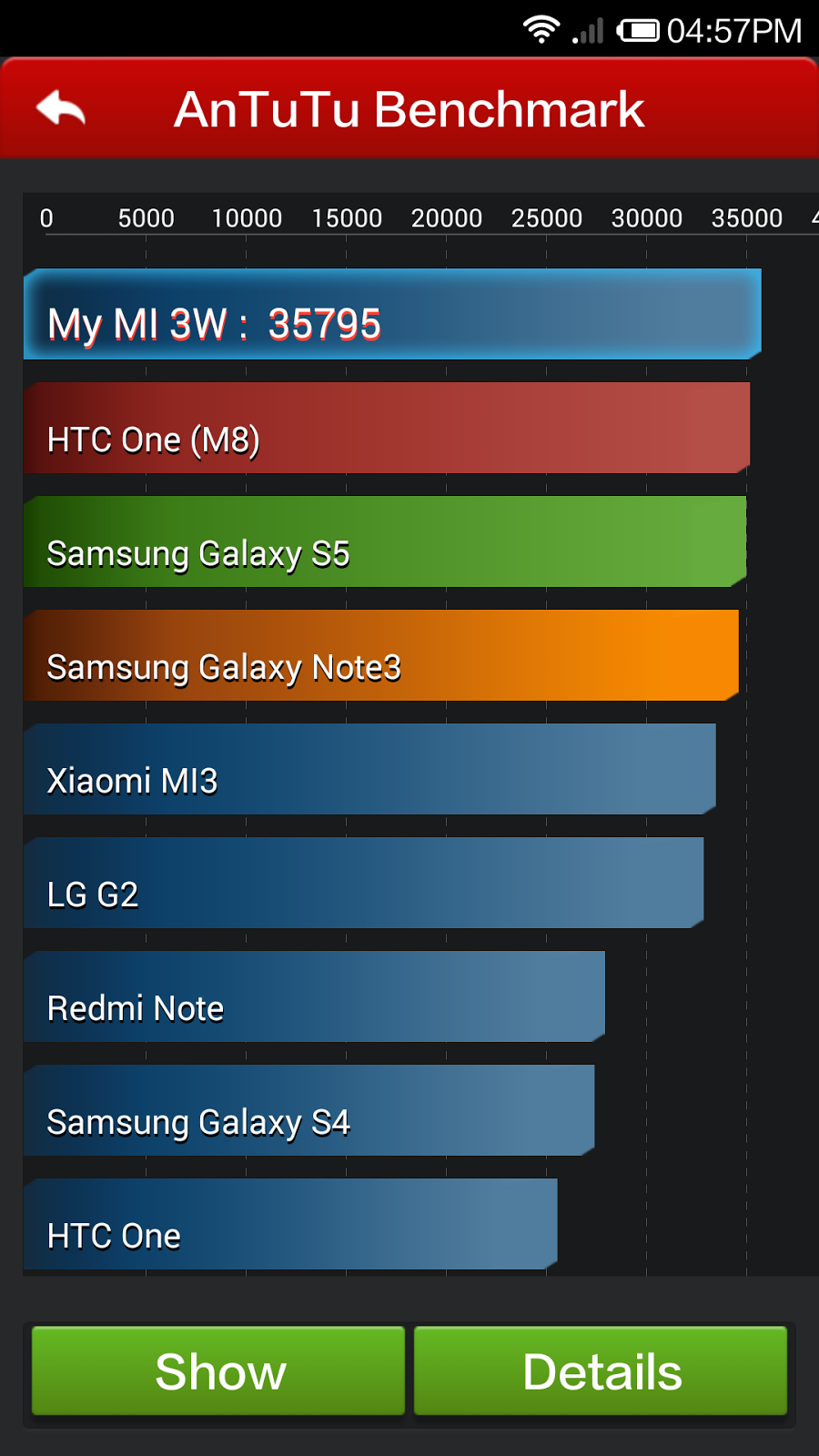
Hence I decided to offer an enthusiast's approach by adopting a variation of the usual benchmarking reviews by using the Antutu benchmark to compare my stock Mi3 (android 4.3) with a Samsung S4 LTE i9505 running Cyanogenmod 11, which is also based on jelly bean 4.3. I will then try to push my S4 to the limit to see how close I can come to the Mi3's performance.

Stock Mi3 performance

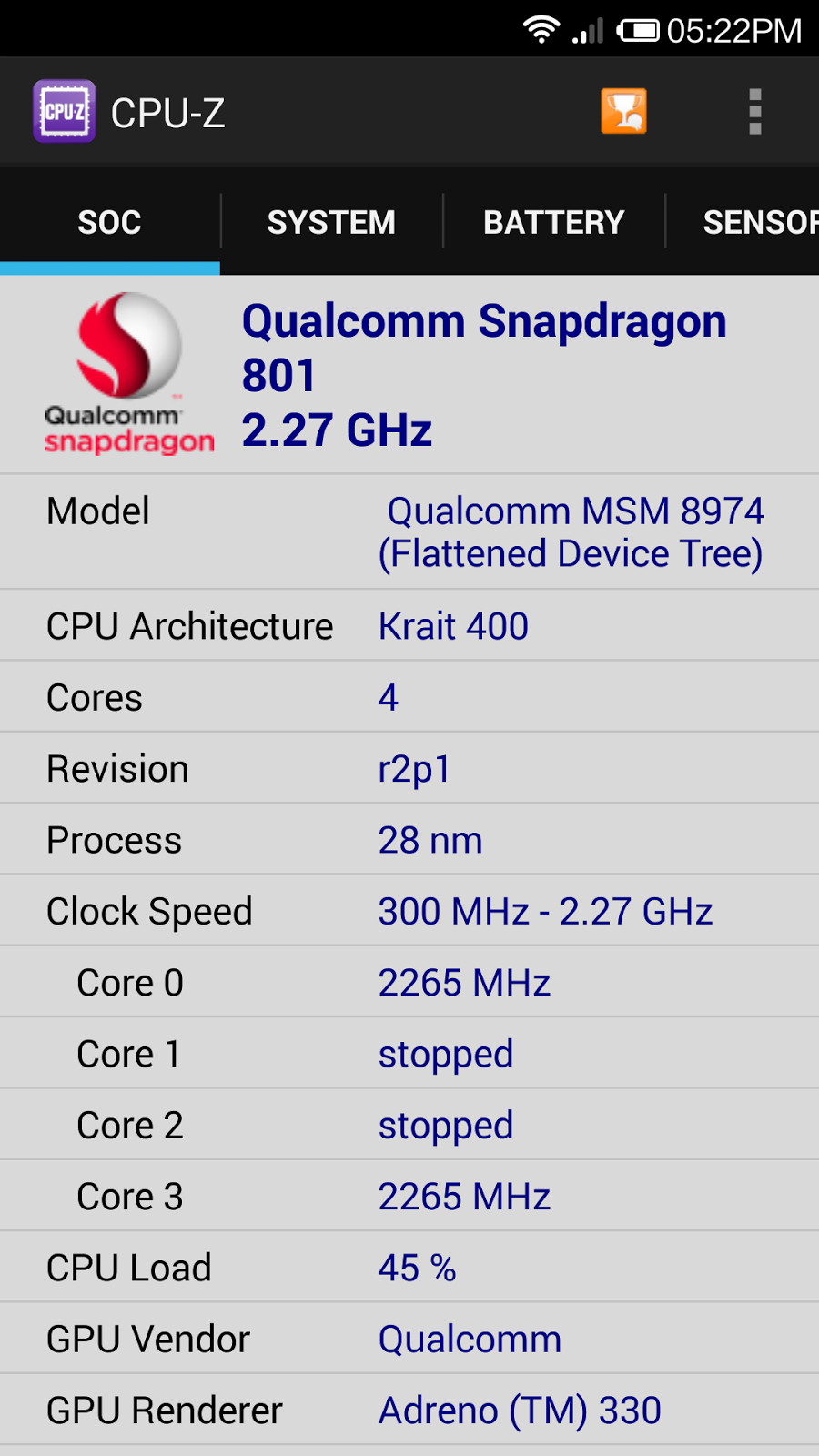
I ran my favourite CPU-Z ID to gather all the necessary information about the Mi3.


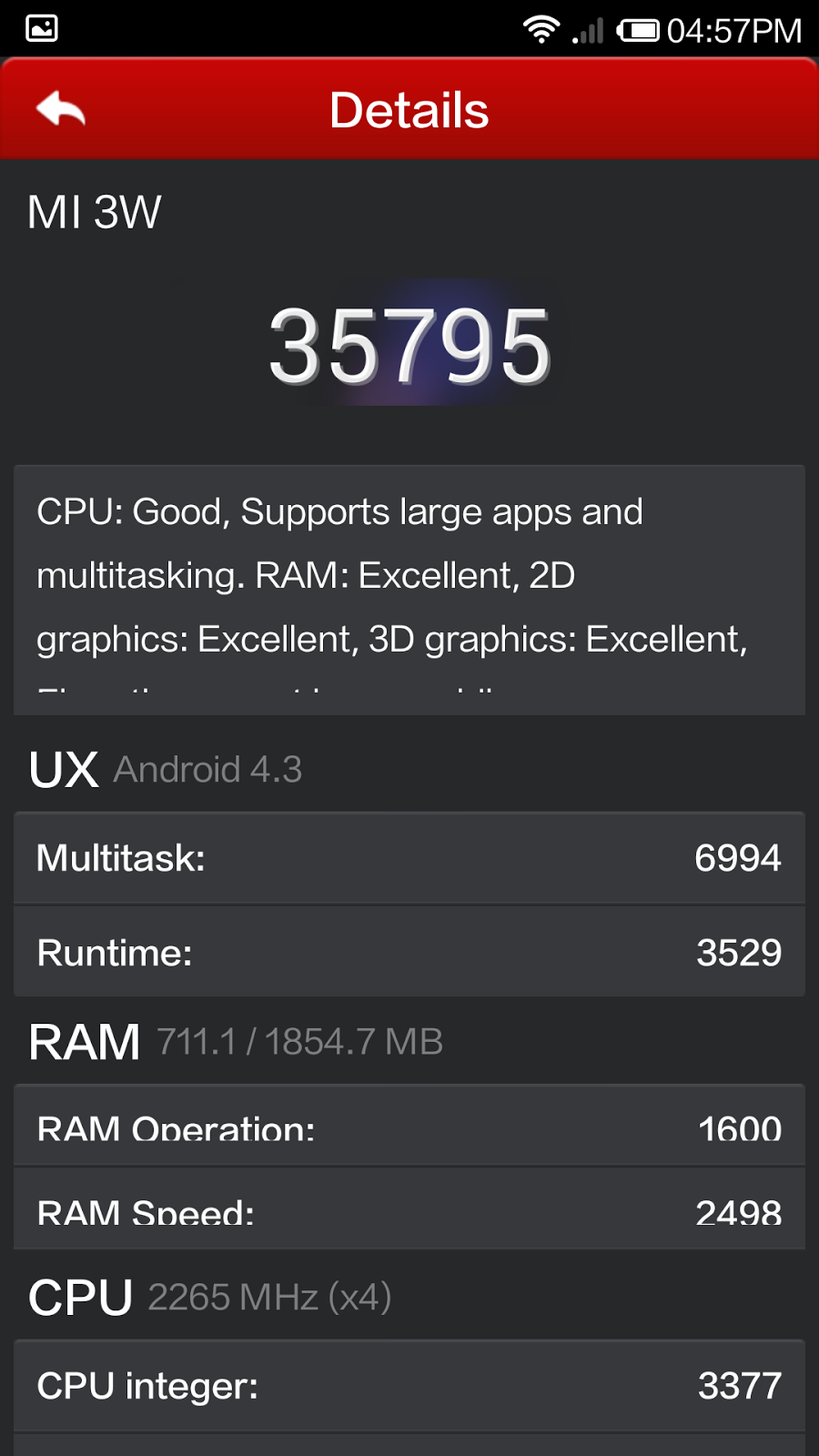
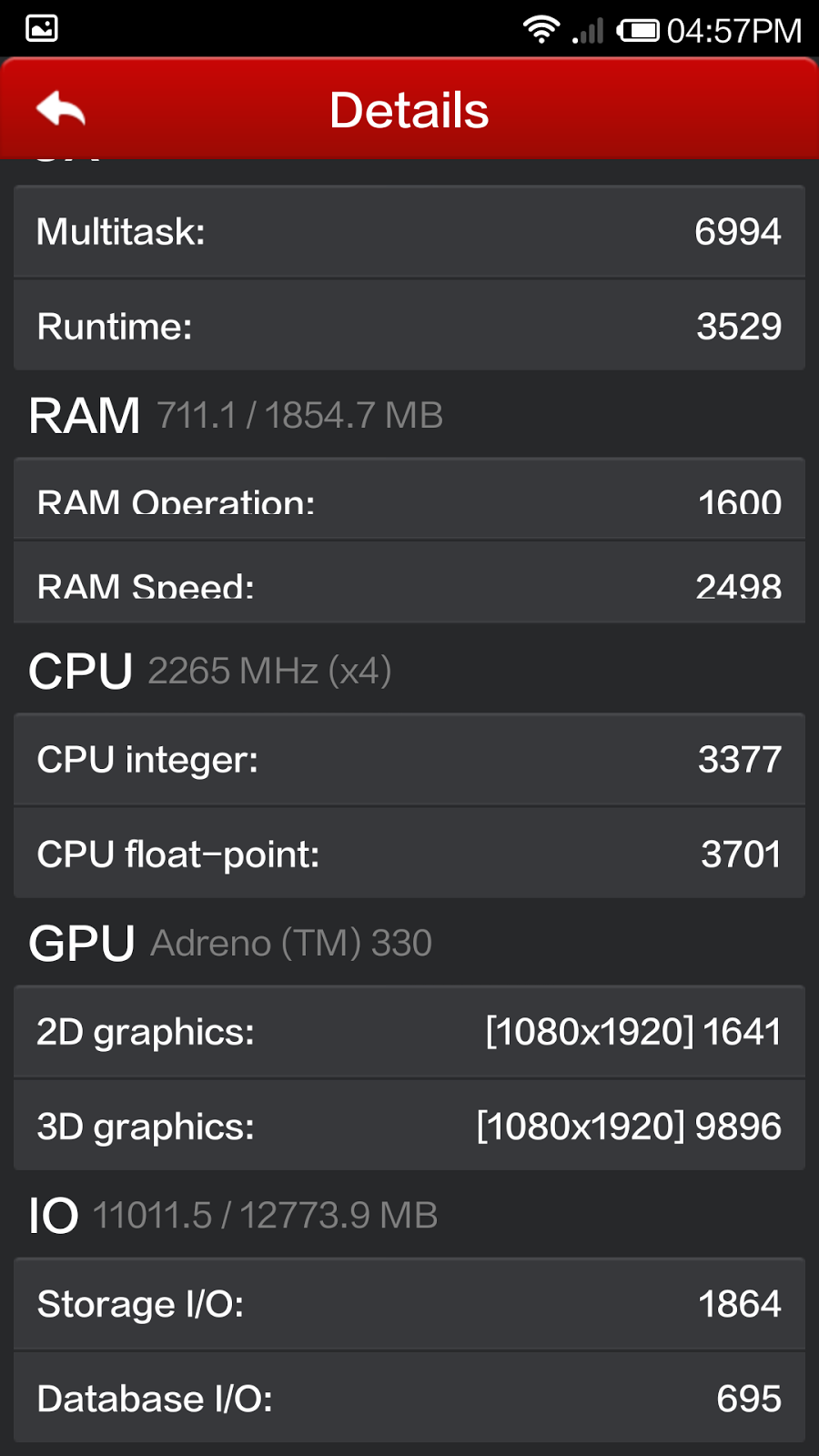
Now comes the Antutu benchmarking! The Mi3 trashes all the competition!


Thursday, May 29, 2014

Free backcover for Redmi phone: Compliments of Xiaomi


I received a package in the mail from Xiaomi today. Had been waiting for this since Xiaomi Singapore announced on its facebook page several weeks ago that those who were affected by Paypal payment issues would be compensated with a complimentary red backcover for the Redmi phone.

My pleasant surprise in the mail:


The backcover itself was not exactly red, as it was closer to a deep orange. Since it is free, I am not complaining! It had a nice glossy finish, which was a contrast from the original matte grey cover. Putting it on my Redmi phone, I thought the glossy finish gave the Redmi phone a more premium feeling.


The buttons were also of the same colour, and the MI logo was a reflective dark red.


Thank you Xiaomi, even though you didn't have to!

Sunday, May 18, 2014

Review of MiWifi usb dongle


Those of us who participated in the Miui fan meet-up in Singapore were each given a free Miwifi usb dongle as a door gift.

In case you are wondering what you could be using this for, let us consider what it is supposed to do. In short, it allows any laptop or PC to wirelessly tether and share internet connection or transfer files to and from your smartphone.

This is useful if you are a frequent overseas traveller and find yourself in a hotel room with only an Ethernet LAN connection and no wifi. For example, many local hotels in China may only offer Ethernet LAN but not wifi in your room.


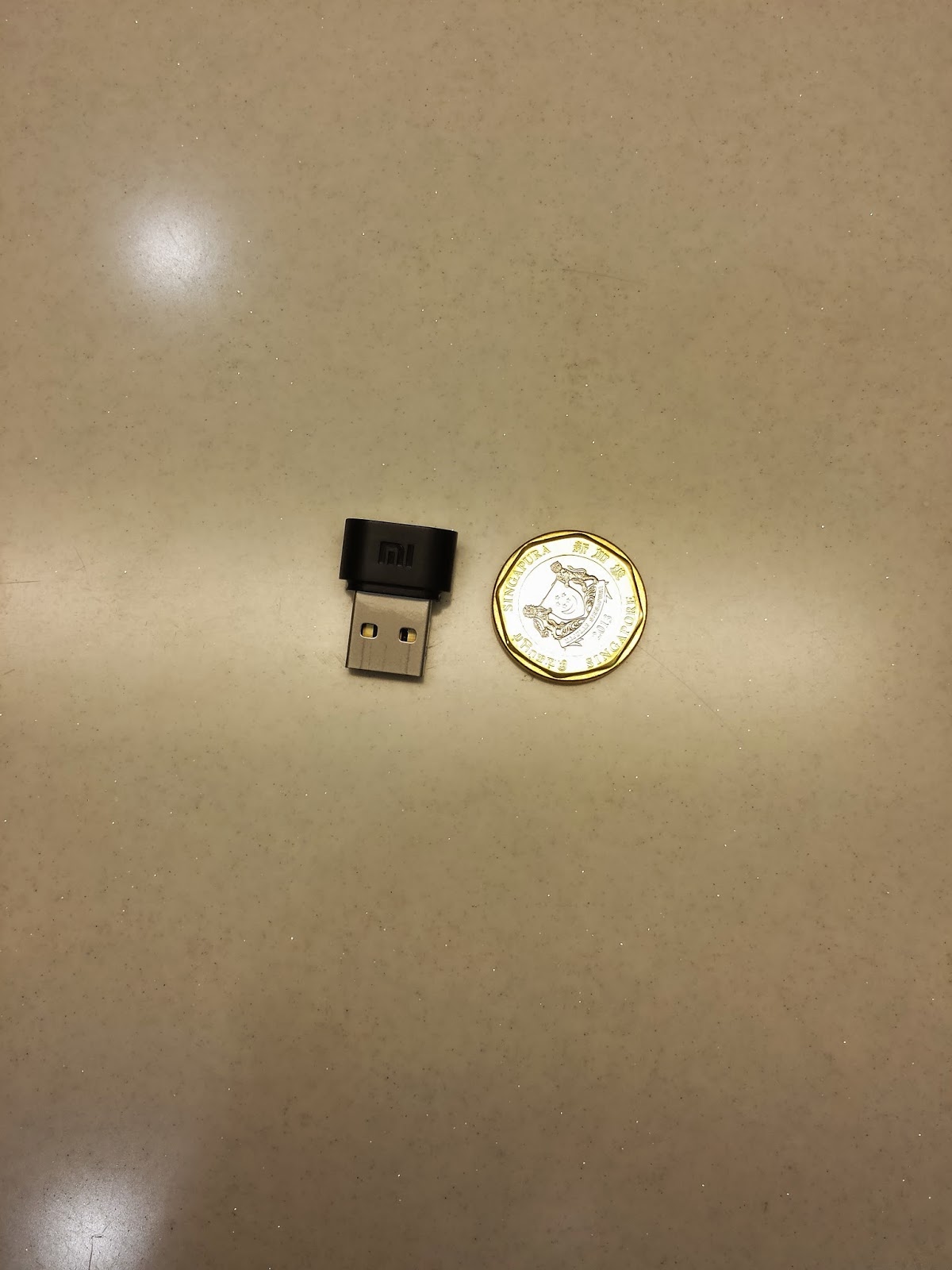
Miwifi beside a Singapore $1 coin.

The Miwifi is a small usb dongle that is very handy and portable for PCs and laptops. It does not require any external power, as it draws current from the usb port.


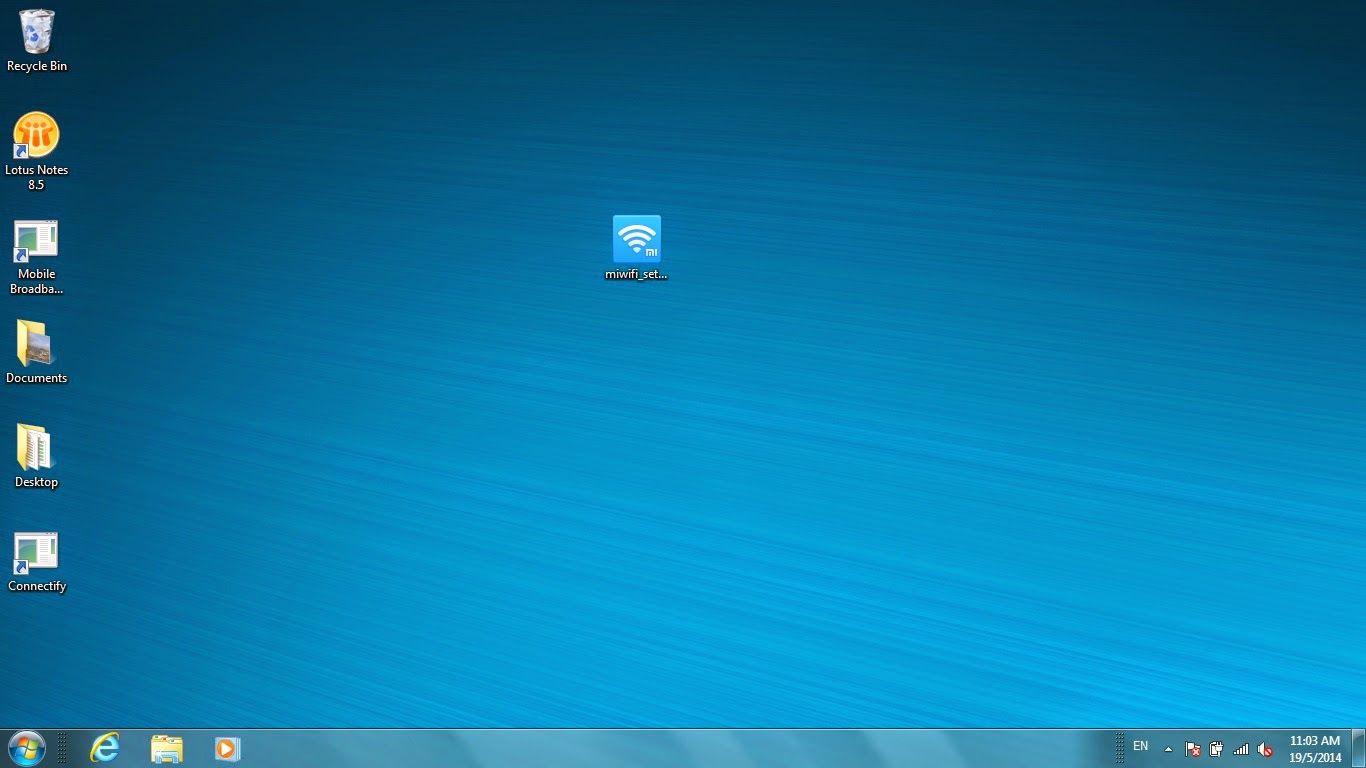
10.8 mb Set-up file sitting on my desktop.

A small .exe set-up file (10.8mb) is required to install the driver. This is downloadable from the Miwifi website here. Look for "download"("下载") , and "xiaomi portable wifi client" ("小米随身WiFi客户端").

The set-up will require administrator rights if your laptop is a corporate piece of equipment sitting behind a firewall. Unlike software-based solutions such as Connectify which I have previously tried with limited success (possibly due to driver incompatibility or firewall issues), I did not encounter any driver issues with the Miwifi. Miwifi driver installation is very straightforward and user-friendly.

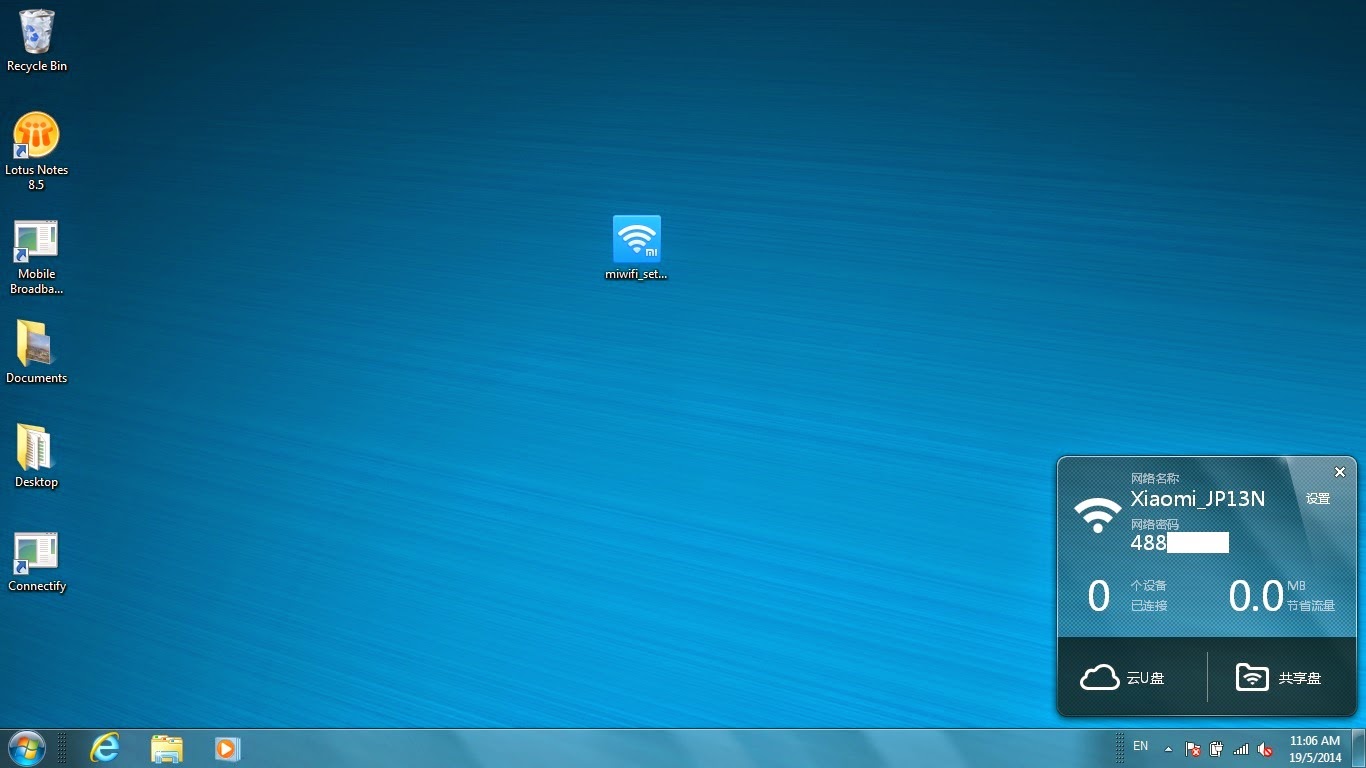
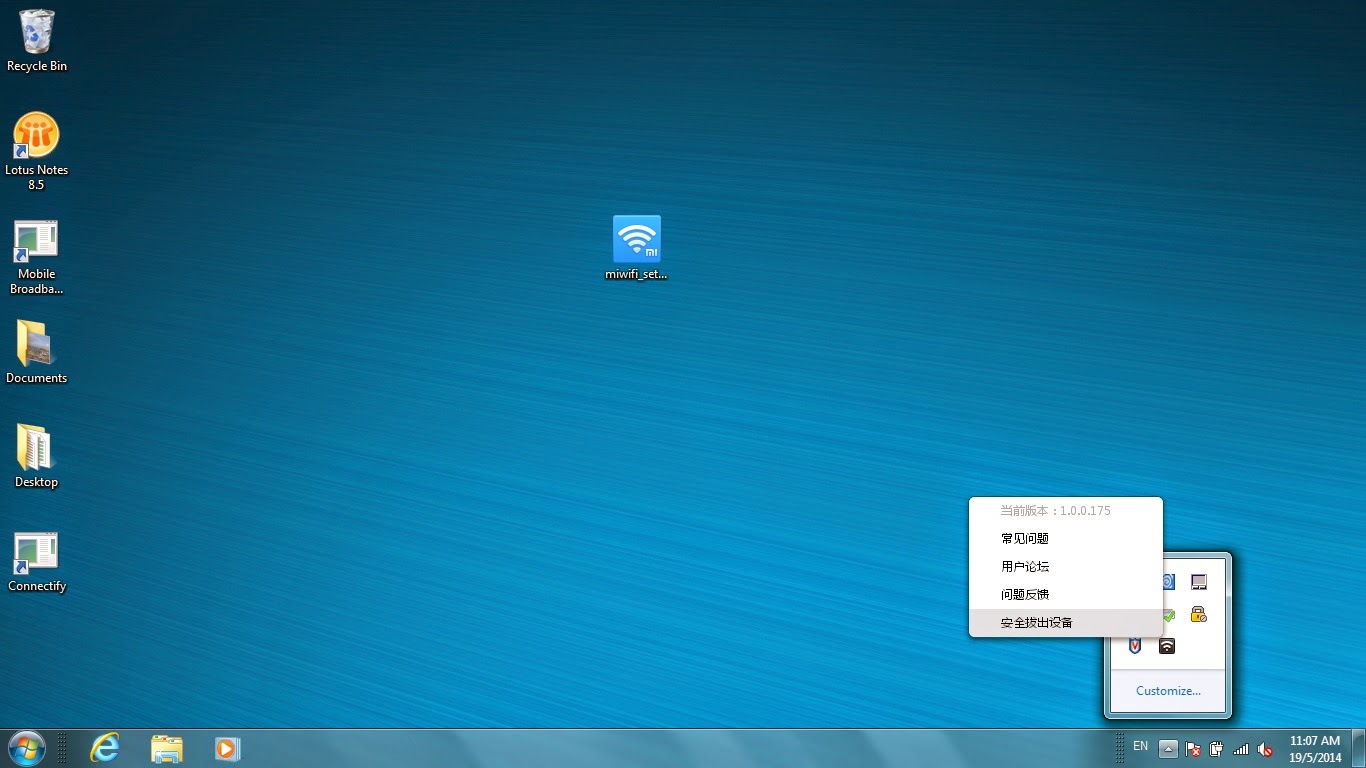
Upon installation of the driver, plugging in the Miwifi will activate the UI as shown below.


UI is well designed and sits in the task bar tray

Once the UI is activated, the Miwifi will have a secure wireless network (WPA2 PSK) and show the 8 digit pin for entry into your smartphone as the wifi password. Under settings ("设置"), the wireless network name and password can be changed and customised.

When unplugging the Miwifi, right clicking on the icon will call-up the UI and you can choose the option to ''safely unplug device" ("安全拔出设备")


Like all USB devices, don't forget to right click and stop operations before unplugging

The driver version used here is 1.0.0.175.

 There is an option to connect to the Kingsoft (金山软件)-managed Kuaipan cloud storage (云U盘). However, access to Kuaipan may not be possible if there is a firewall.


Saturday, May 10, 2014

1st MIUI fan meet-up in Singapore with Hugo Barra, Ren Tian and Peter


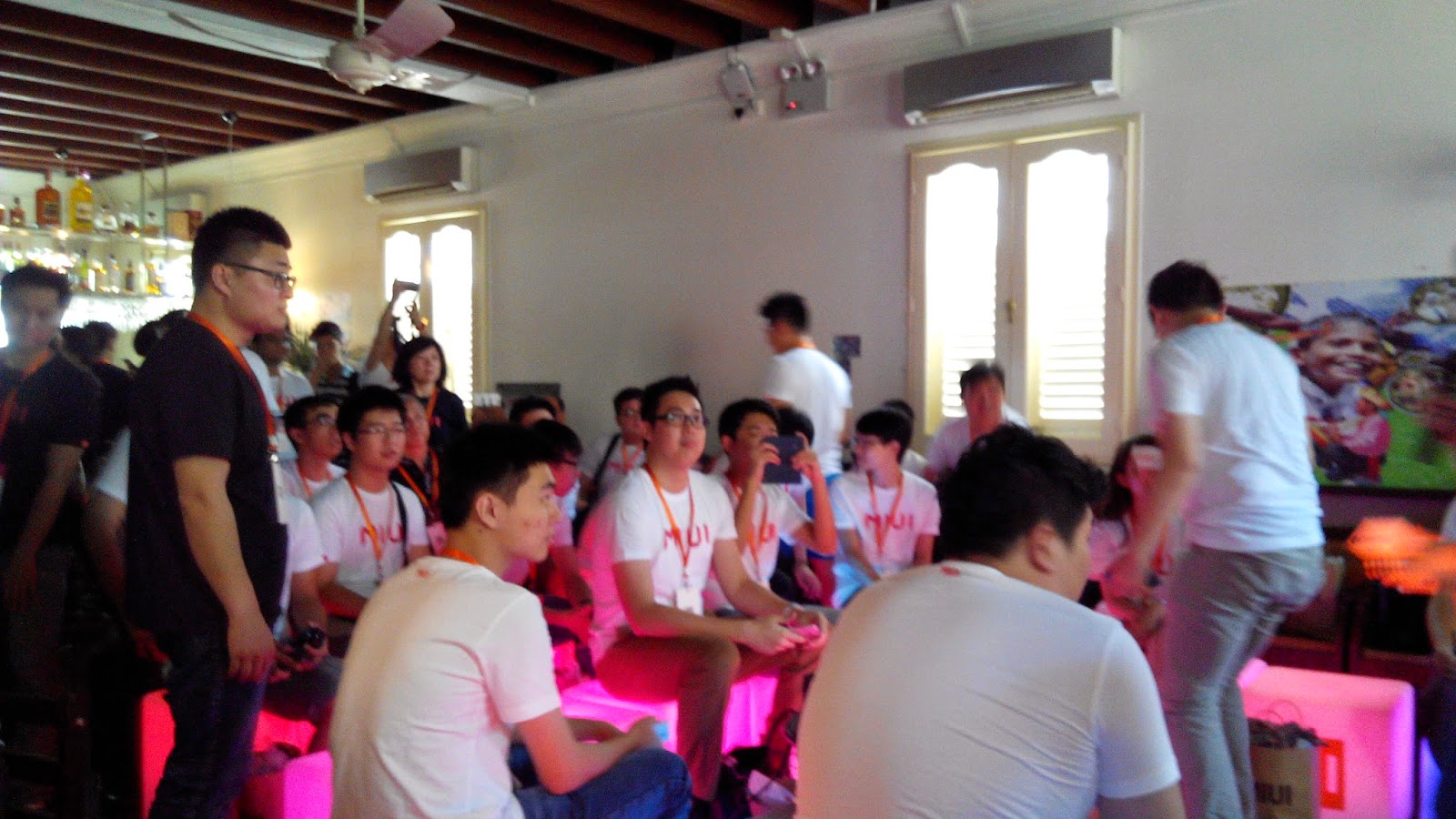
I was one of 60 fans selected to attend the inaugural Miui fan meet-up in Singapore. It is also the first fan meet-up outside China. 


I thought it was an awesome opportunity for fans to meet-up and listen from the people at Xiaomi who were going to talk about miui development and design. The meet-up at Limestone along Jiak Chuan Road was very comfy, but no beer unfortunately.


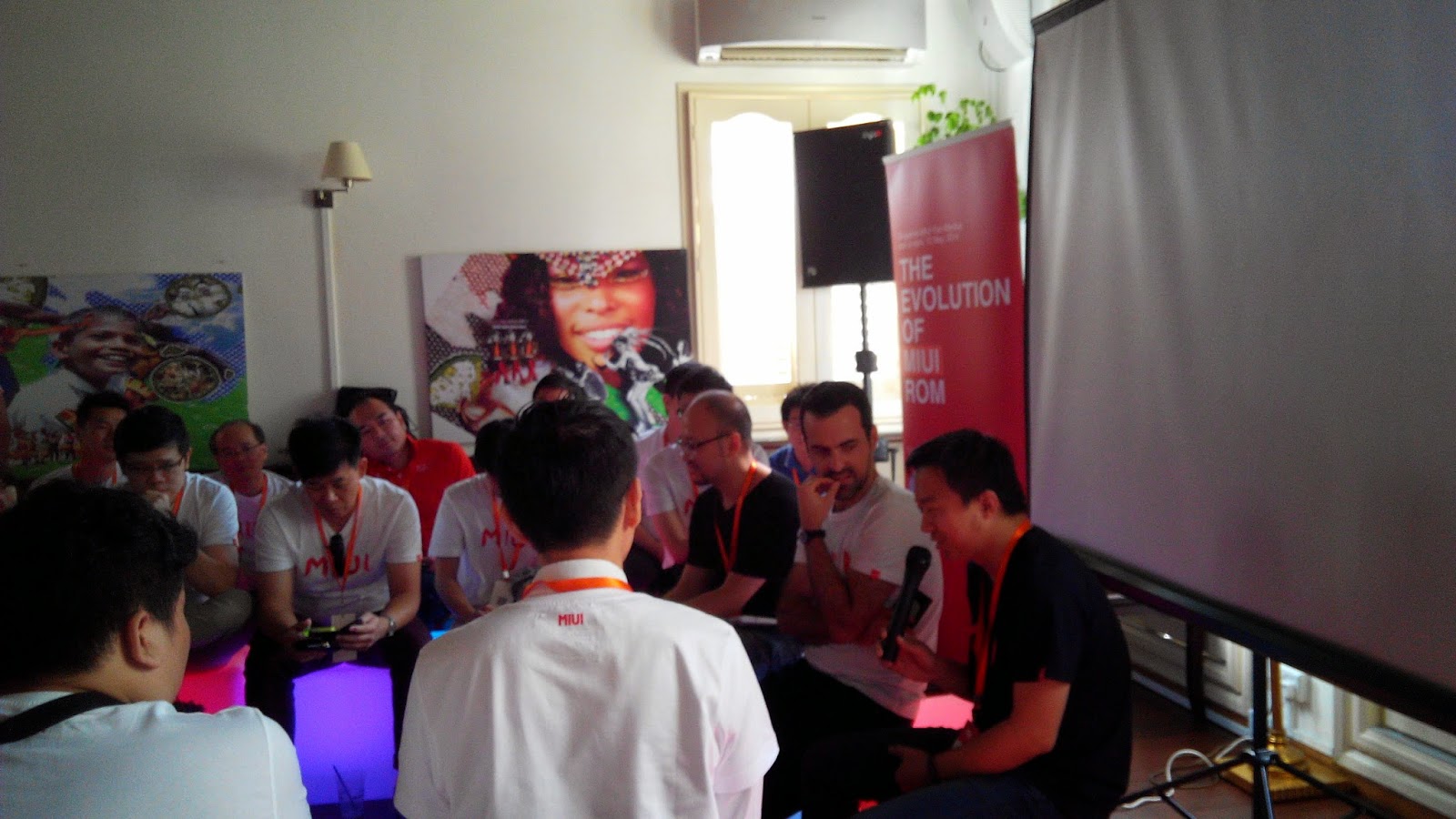
I took a picture with Hugo Barra before the event and he nicely obliged (there was a long queue for his autograph at the end of the event!) and recorded his presentation on the history of Miui. With his PR skills, I think he is going to be a key member of Xiaomi's global marketing efforts outside China. Youtube link over here.


Dexter Ren Tian was next to talk about Miui design. He was competent in English but I am sure he would have explained in deeper detail if he was delivering in Chinese. It is quite amazing to hear that Miui version 1 was only launched in 2010. With a new version of Miui every year, Xiaomi has achieved very impressive growth over a short span of 4 years. Youtube link over here.


Then there was a presentation on the nifty features of Miui by the product manager Louis for Singapore. (I stopped recording around about here because the arms were getting stiff). This was followed by Q and A with the speakers (Hugo, Dexter and Head Engineering Peter). The quality of questions was ok, but I would rate it only at 7 out of 10. I may update this article later with more thoughts about the Q and A session.


I thought Peter was pretty stressed out but that is probably because English is his second language. He probably already has like numerous features he needed to introduce into Miui V6 and hardly needed the audience to remind him (and we did). On the whole, I really thought that the Xiaomi China team tried very hard with communication in English and it is something they will do more often as they expand into other markets.

Did I mention that I was one of the lucky winners of a MiBox? That will be reviewed in another post *heh heh*. Take a look at my free gifts from this meet-up (Mi rabbit stuffed toy, MiBox, MiWifi, Miui T-shirt)


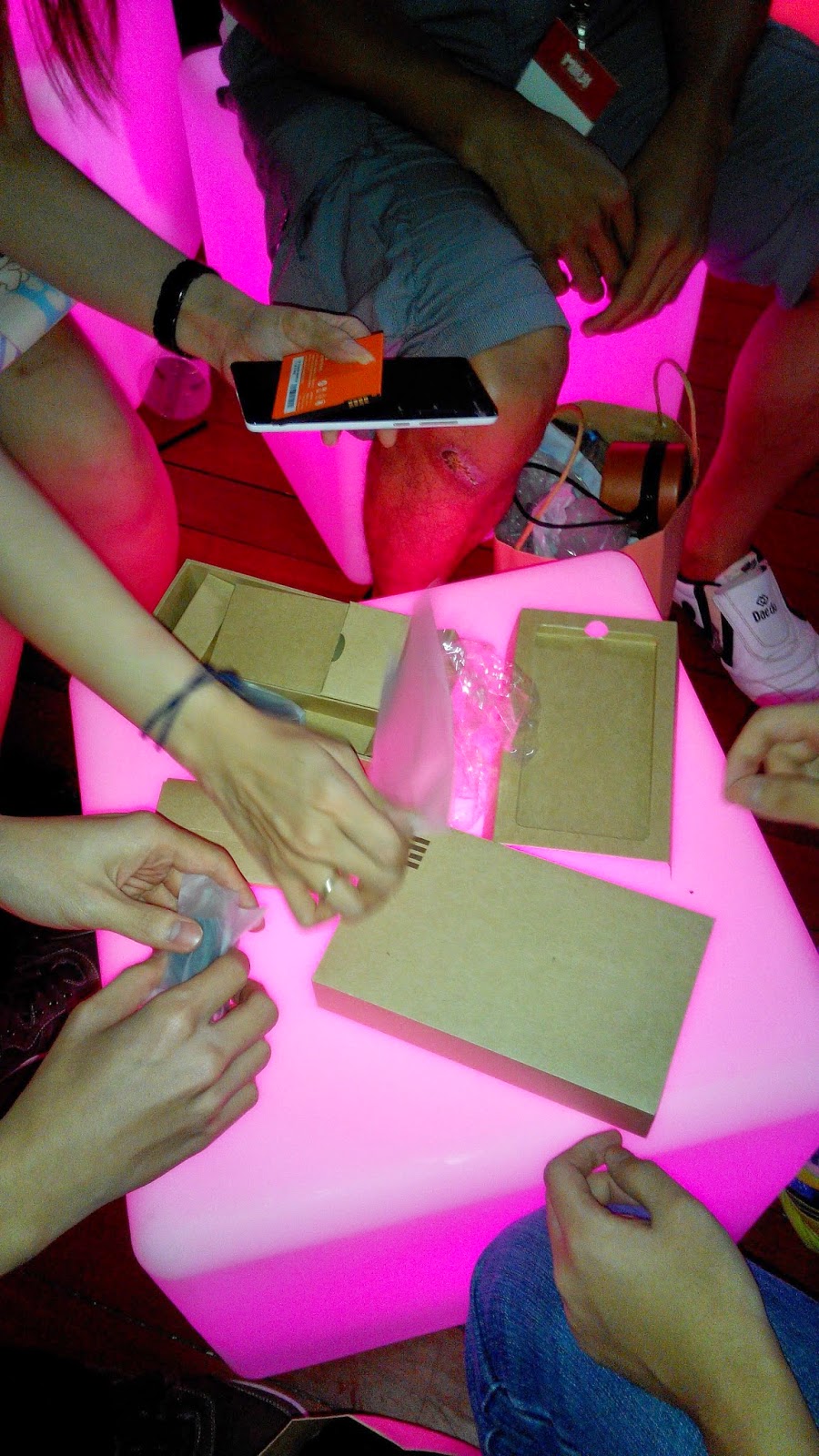
After the lucky draws, there was a Redmi Note unboxing session. The Redmi Note shown is the TD China version.


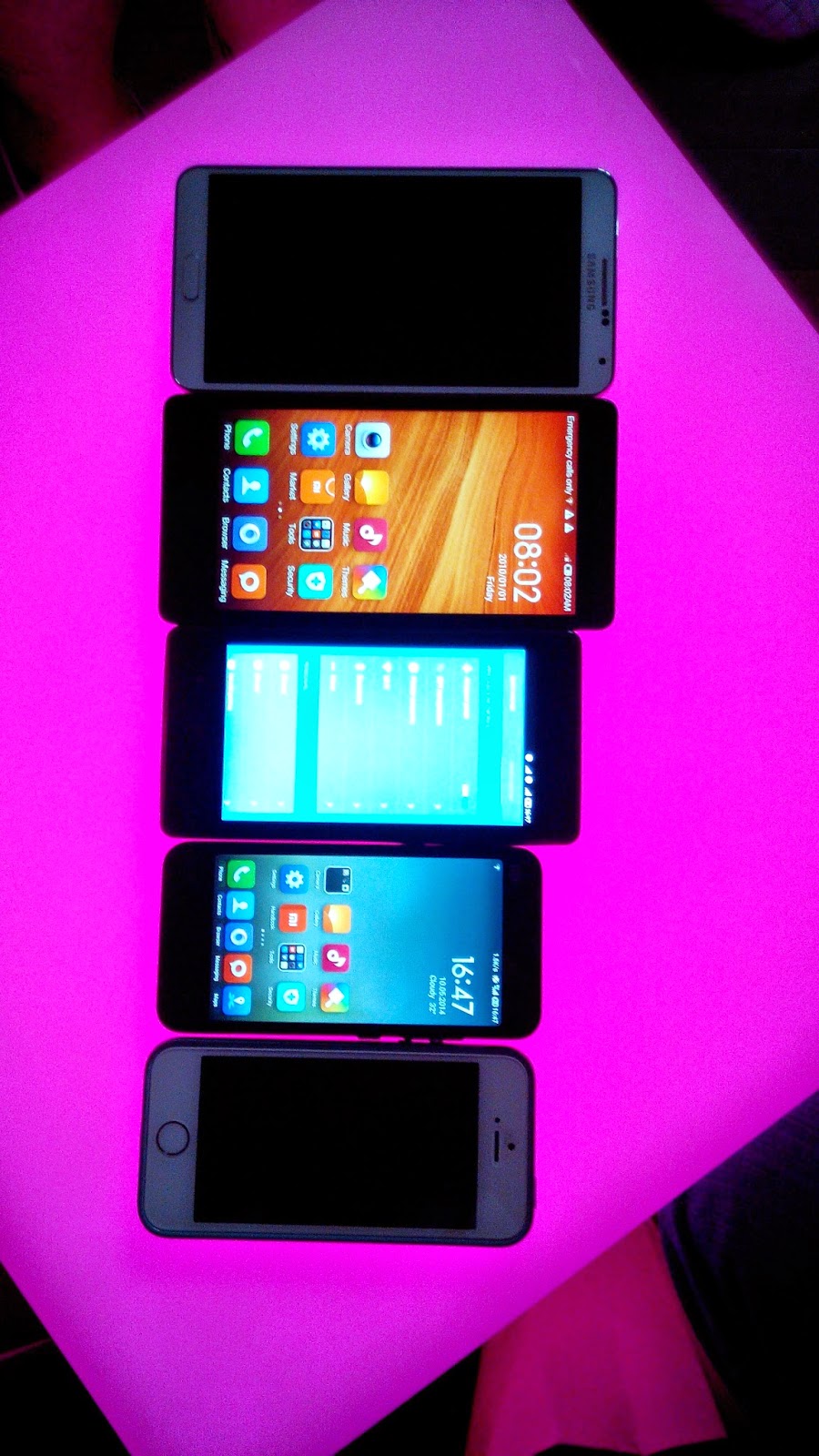
My unboxing group did a side-by-side comparison of Samsung Note 3, Redmi Note, Redmi 1, Mi2 and iPhone 5 (from top to bottom, in that order). Well, actually I thought that fans should only bring Xiaomi phones to a meet-up.


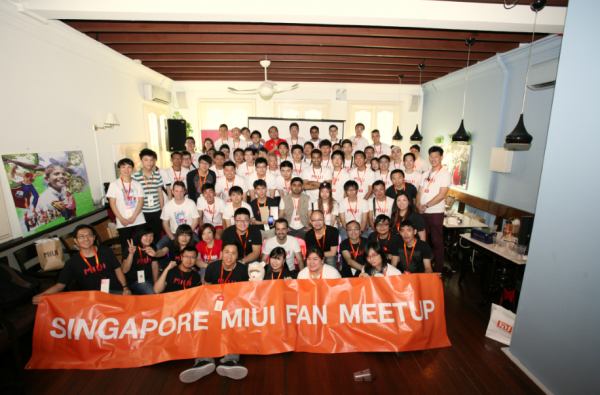
Group photo! (Thanks to Nanana and Miui forum)


Wednesday, April 2, 2014

Installing the MIUI V4 ROM or Cyanogen Mod 10.2 on S3 Mini i8910N


This is the proven method for MIUI V4 ROM and CyanogenMod 10.2 (Jelly Bean 4.3.1)

1. Download the MIUI V4 ROM file, GApps for MIUI and Xperia keyboard from XDA forums over here for S3 Mini.

or Download the Cyanogenmod 10.2 files, and GApps from Maclaw over here.

2. Copy into external Sdcard.

3. Shut down device. Enter recovery mode by holding the volume up, home button and power button simultaneously.

4. I used TeamWin's TWRP. Then follow these steps:

- Full wipe (dalvik, cache and data)
- Flash the ROM
- Flash the GApps (check that they are for the correct Android version!)

For MIUI V4 ROM only:

- Flash the Xperia Keyboard (necessary for MIUI V4 ROM because the MIUI keyboard is 'force-closing' (but you can install other keyboards later).

5. Reboot.

Common Whatsapp issues and fixes:

(1) Whatsapp Contact List is missing

This is usually due to a Security app on the custom ROM that is denying Whatsapp permission to access your Contact Book. Under MIUI V4 Rom, go into the LBE Guard app to allow Whatsapp access.

(2) Whatsapp unable to send and receive under mobile data connection (but ok when connected to Wifi).

This is due to the phone having the wrong APN setting. Under M1, this was resolved by choosing the Sunsurf Internet APN. This should already been detected. If not, they are:

Name: Sunsurf Internet
APN: sunsurf
Proxy: Not set
Port: Not set
username: Not set
password: Not set
server: not set
MMSC: not set
MMS proxy: not set
MMS protocol: WAP 2.0
MCC: 525
MNC: 05
authentication type: not set
APN type: default, hipri

Update on 11 May 2014

I have updated my S3 Mini i8910N to MIUI V5 Beta 1.3. It appears to be quite stable. Under MIUI V4, I was not able to send long SMS. This was an issue I could not live with. This is no longer an issue under MIUI V5 Beta 1.3.

Thursday, March 20, 2014

Rooting any Samsung android phone


The general principle behind rooting any Samsung phone is the insertion of the correct custom recovery for the model and android version.

For example, in the case of the Samsung S3 Mini i8190N (International version) running Jelly Bean 4.1.2, the following steps are proven to work:

1. Enable USB debugging mode under Developer Options. Ensure that Samsung KIES is installed to allow PC to detect the phone.

2. Download and install Odin v3.07 onto PC. Run as Administrator.

3. Put the phone in Download mode (Pressing Power+Volume Down+Home button simultaneously,then follow onscreen instructions 'Volume Up'). Odin is normally zipped up together with CF Autoroot .zip files.

4. Using the PDA function, select the appropriate custom recovery. For example, the correct Twrp .tar file must be downloaded from TeanWin's website. For example, for S3 Mini, it will be over here. Then connect up the phone via USB.

5. Once the phone is detected, flash the custom recovery .tar.

6. Reboot phone. Put phone into Recovery mode. (Pressing Power+Volume+Up+Home button simultaneously). Twrp will detect that the phone is not yet rooted and give you the option to install SuperSU.

7. Once SuperSU is installed, the phone is rooted.